Hunt-and-peck typists average 20–35 WPM with a hard ceiling around 40 WPM — you simply can't search for keys fast enough to go higher 20 . Touch typists start at 40–60 WPM and have no practical ceiling. The difference isn't practice time or a better keyboard. It's finger placement.
TL;DR: Left hand on ASDF, right hand on JKL;. Each finger owns a vertical column. Curve your fingers. Snap back to home row. Don't look down.
Home Row Position
Every touch typing method starts here. No exceptions.
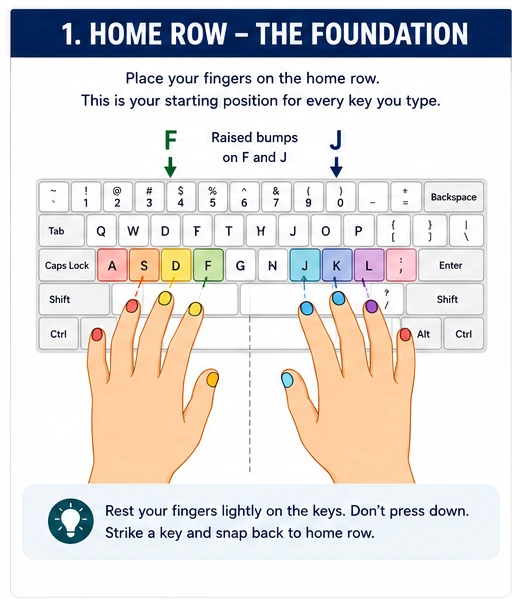
| Finger | Home Key |
|---|---|
| Left pinky | A |
| Left ring | S |
| Left middle | D |
| Left index | F |
| Right index | J |
| Right middle | K |
| Right ring | L |
| Right pinky | ; |
The raised bumps on F and J are your reference points. If your fingers drift, feel for the bumps and reset. Harvard's RSI Action program identifies proper home row position as the foundation of healthy keyboard typing — bad placement is a primary cause of repetitive strain injury.
Fingers rest lightly on these keys. They don't press. They hover, ready to move. When a finger strikes another key, it returns immediately. The snap-back is what makes touch typing automatic.
Finger Territory Map
Each finger owns a vertical column of keys. This is how you learn how to type with all fingers without looking — your fingers know their territory.
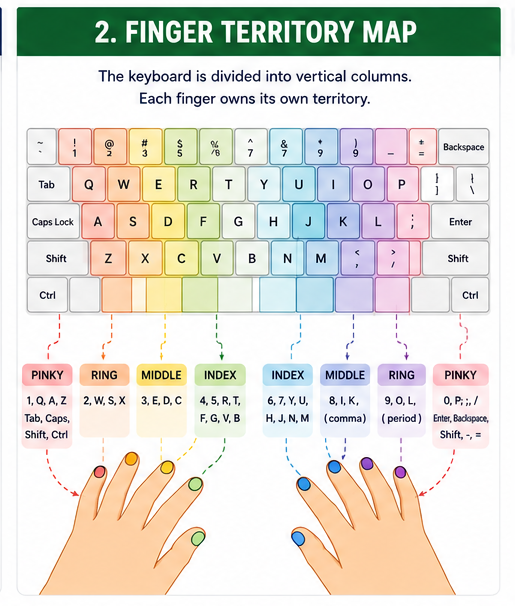
Left Hand
| Finger | Keys |
|---|---|
| Pinky | 1, Q, A, Z, Shift (left), Ctrl (left), Tab, Caps Lock |
| Ring | 2, W, S, X |
| Middle | 3, E, D, C |
| Index | 4, 5, R, T, F, G, V, B |
Right Hand
| Finger | Keys |
|---|---|
| Index | 6, 7, Y, U, H, J, N, M |
| Middle | 8, I, K, , (comma) |
| Ring | 9, O, L, . (period) |
| Pinky | 0, P, ;, /, Enter, Backspace, Shift (right), -, = |
The index fingers handle the middle gap — that's why they have the largest zones. The pinkies cover the edges: Shift, Enter, Backspace, Tab. Middle and ring fingers have narrow, consistent columns.
The most common error: using the wrong hand for C, V, B, N, M. C = left middle finger. B = left index. N and M = right index. It feels wrong at first. It's correct.
Types of Finger Movement
Once you understand the territory map, you must master how your fingers navigate between keys.
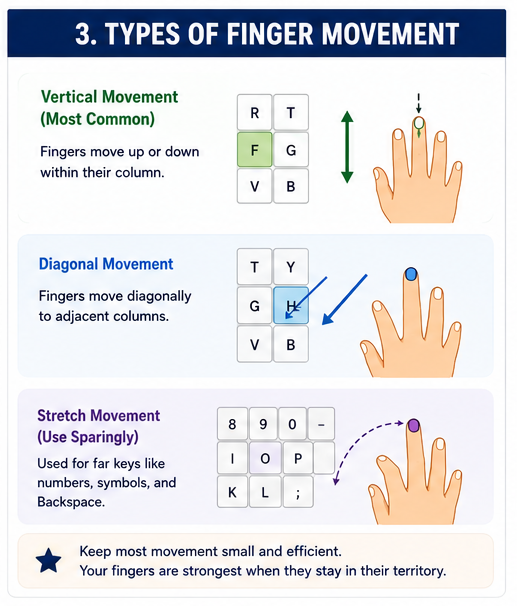
Efficiency in typing comes down to three specific types of motion. Most of your typing will involve Vertical Movement, where fingers travel up or down within their assigned column—for example, moving from 'F' to 'R' or 'V'.
For keys that sit slightly outside the center of the column, such as 'G' or 'H', you will use Diagonal Movement to reach adjacent keys without shifting your entire hand. Finally, there is Stretch Movement, which is used for distant keys like the number row, symbols, and the backspace key. To maintain high speed and accuracy, you should keep these movements as small and efficient as possible. Research shows that fingers are strongest and most accurate when they stay close to their home row "territory" and minimize unnecessary reaching 1 .
Three Rules for Learning
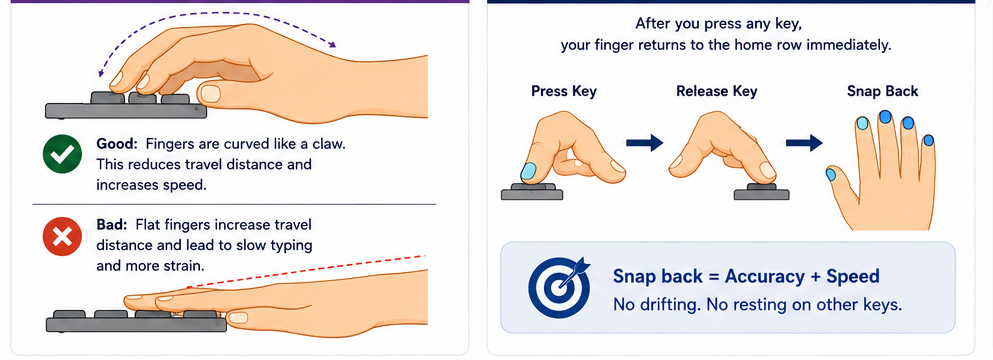
Curve your fingers. Hold them like you're gripping a tennis ball. Flat fingers travel farther to reach the top and bottom rows. Curved fingers minimize movement.
Snap back to home row. After every keystroke — top row, bottom row, symbol — the finger returns home. Not eventually. Immediately. Without the snap-back, you're just memorizing key locations. Your accuracy will plateau and your fingers will drift.
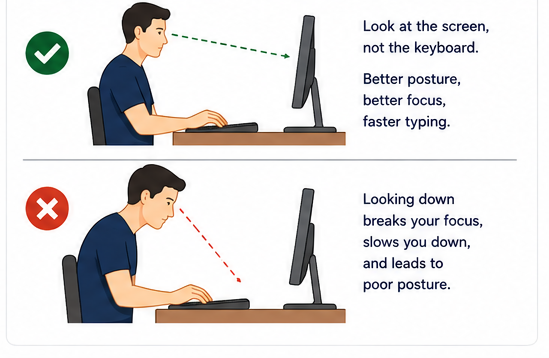
Eyes on the screen. Every time you look down, you pause muscle memory. The screen shows you if you made a mistake. Looking down doesn't prevent errors — it just slows you down while you make them. Oregon OSHA's ergonomic guide recommends monitor positioning specifically to support this — eye level, arm's length, no craning.
Realistic Timeline
Large-scale typing platform data shows consistent improvement patterns for adults learning touch typing 16:
| Week | Typical WPM | Stage |
|---|---|---|
| 1–2 | 18–30 | Awkward phase; fingers don't know the map |
| 3–4 | 35–50 | Pattern recognition; stop looking at keyboard |
| 6–8 | 55–70 | Surpass hunt-and-peck speed |
| 12–16 | 70–85 | Muscle memory solidifies; speed climbs |
Total time investment: roughly 10–20 hours of practice. The key is 15–20 minutes daily, not long occasional sessions. Sporadic practice doesn't build muscle memory — consistency does.
If you already know basic keyboard typing and just need to fix placement, you can cut this timeline in half. The hardest part is unlearning bad habits.
Common Mistakes
Wrong fingers for border keys. C, V, B, N, M are the most commonly misassigned. Drill them separately until automatic.
Ignoring pinkies. Most beginners stretch their ring fingers instead of using pinkies for Shift, Enter, and Backspace. This limits speed and causes hand strain. Force pinky use — they feel weak at first, then get stronger.
Looking at hands. Everyone does this. The goal is to notice when you look, and stop. Trust the F and J bumps.
Skipping the number row. Everyone practices letters, then freezes on passwords and dates. The number row follows the same column rules: 1–2 left pinky/ring, 8–9 right middle/ring, 5–6 both index fingers. Practice it.
When to Move to Speed Work
Once you can consistently touch type at 40+ WPM with 90%+ accuracy typing, you're ready for speed drills. Before that, focus on placement. Chasing high typing speed with bad finger technique builds bad habits that take longer to unlearn than starting slow. To truly master typing, you need both clean placement and clean execution — fast finger typing only works when the foundation is solid.
If you're wondering how to type faster after mastering placement, or how to how to increase typing speed in computer setups specifically, check our guide on why your speed might be stuck. The wall between 80 and 100 WPM is technique, not effort.
Whether you use Typers World, typing master pro, or another platform, the finger map is universal. The home row is the same. The snap-back is the same. The only variable is daily practice.
Now put your fingers on F and J. Run an alphabet typing test. See where you stand.
Straight Answers
How long to learn proper finger placement?
4–8 weeks to feel comfortable. 8–12 weeks to surpass hunt-and-peck speed. That's 10–20 hours total practice time [^16^]. Our free typing lessons are structured for this exact progression. For typing practice for beginners, 15–20 minutes of daily keyboard practice is the sweet spot.
Can adults learn touch typing?
Yes. Adults often learn faster than kids because they understand the value. The only disadvantage is more years of bad habits to unlearn. Be patient with the awkward phase. The average typing speed for new touch typists after 8 weeks is 55–70 WPM — well above hunt-and-peck limits 16.
Laptop or external keyboard for learning?
External keyboard if possible. Laptop keys are flat and tightly spaced, making it harder to build finger strength and precision. A $20 external membrane keyboard is better than a premium laptop keyboard for learning how to increase your typing skills. If you want to increase typing speed, proper key spacing matters more than switch type.
How do I practice numbers and symbols?
Run numbers alphabet typing test and coding-specific drills. The number row follows the same finger columns as letters, just shifted up. Symbols (Shift + number) add pinky-held Shift to the same movement. If you write code, our coding game for increasing typing speed covers brackets, semicolons, and all the symbols developers actually type.
What's the fastest way to improve after learning placement?
Targeted weak-key drills. Run a test how fast you type, identify your most-missed keys, and drill those for 10–15 minutes daily. That's how you go from "I know where the keys are" to "my fingers move without me thinking." Our post on improving accuracy and speed has the full method for building high typing speed through deliberate practice.
Should I practice english typing or coding layouts?
Start with english typing to build the foundation. Once you can touch type letters cleanly, add numbers and symbols. If you code, practice coding layouts separately — the symbol patterns are different from prose. Track your average words per minute typing across both to see where you need work.
How do I increase typing speed on computer after learning placement?
The same way everywhere: targeted weak-key drills, consistent daily keyboard practice, and pushing 5–10 WPM above your comfort zone during fast typing practice sessions. Whether you want to how to type faster on a laptop or desktop, the finger map doesn't change — only the keyboard size does.
Related Articles
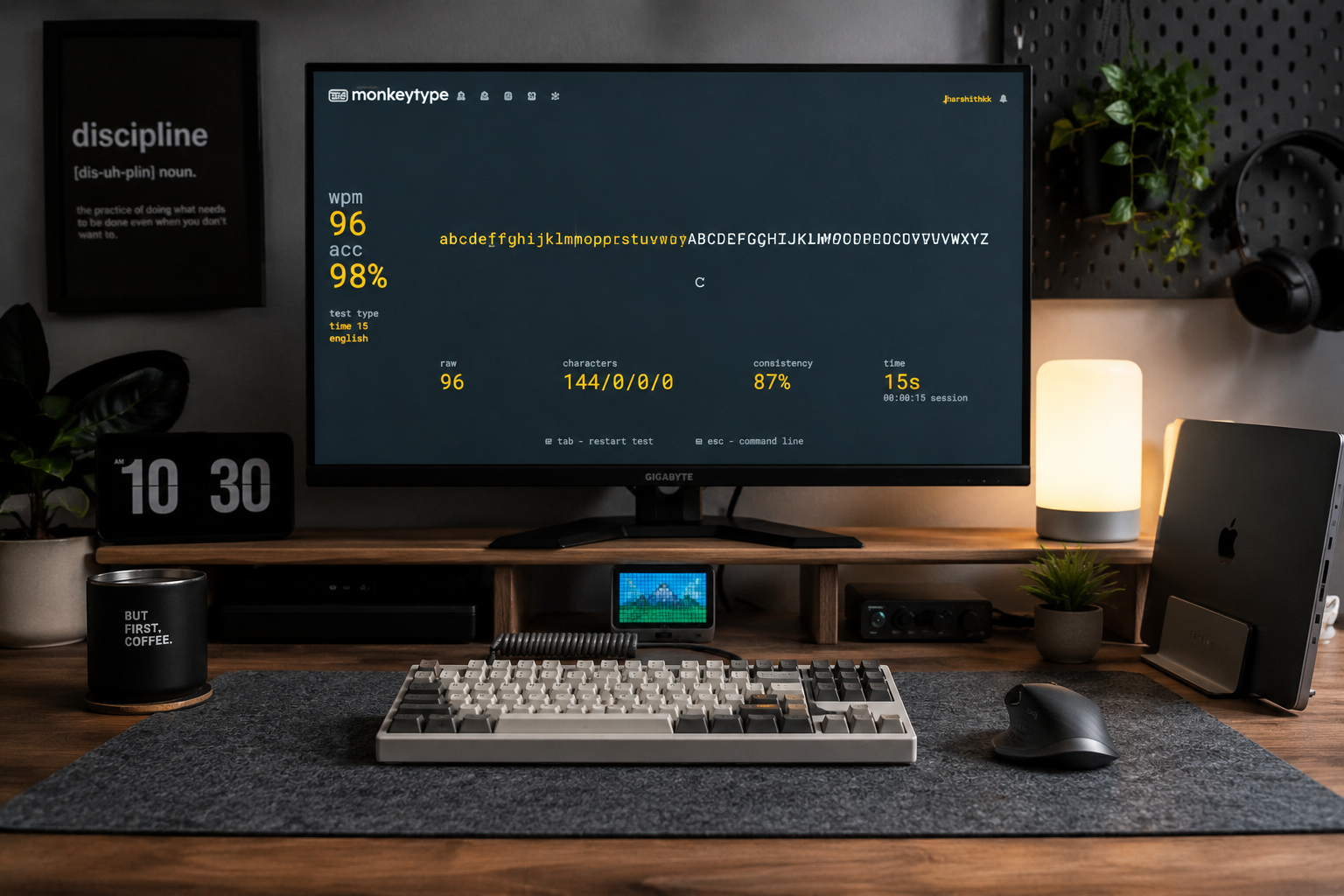
Alphabet Typing Test – Improve WPM, Accuracy, and Keyboard Control
Stop guessing where the letters are. Discover how simple A-to-Z alphabet drills can help you 'ingrain' the keyboard layout into your mind, fixing the common mistakes that keep your WPM stuck.
15 Minute Typing Test: Build Full Endurance & Focus | Typers World
Can you maintain your focus for a full quarter of an hour? The 15-minute typing test is the ultimate challenge for professional endurance. Learn how to manage finger fatigue, stay consistent, and reach the high standards required for legal and medical transcription careers.
10 Minute Typing Test: Build Your Professional Stamina | Typers World
Can you keep your focus for 600 seconds? The 10-minute typing test is the gold standard for writers, developers, and transcriptionists. Discover how to build professional-grade stamina, avoid the mid-session slump, and prove you have what it takes for high-volume roles.